Extreme Networks Campus Controller
This article describes installation and configuration steps for the Extreme Networks Campus Controller.
Connecting |
From the same page, create new RADIUS Authentication Servers and RADIUS Accounting Servers.
Primary Radius Auth Server
Secondary Radius Auth Server
Then create RADIUS Accounting Servers :
Primary Radius Auth Server
Secondary Radius Auth Server
Configuring Roles |
Roles define users' access domains, which can be pre-configured with various settings such as bandwidth quotas, security policies, etc.
Roles must be created with speeds that match the Internet plans on the Start Hotspot portal.
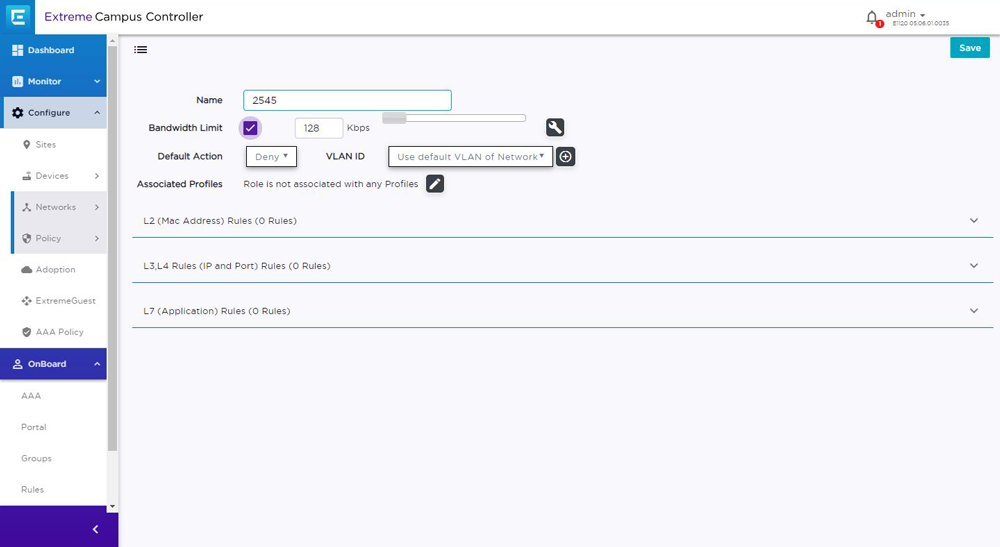
In this example, we will create role 2545, which will determine the bandwidth limits based on the appropriate Internet plan.
Go to the Networks page and add a new role:
In our case, it is 2545.
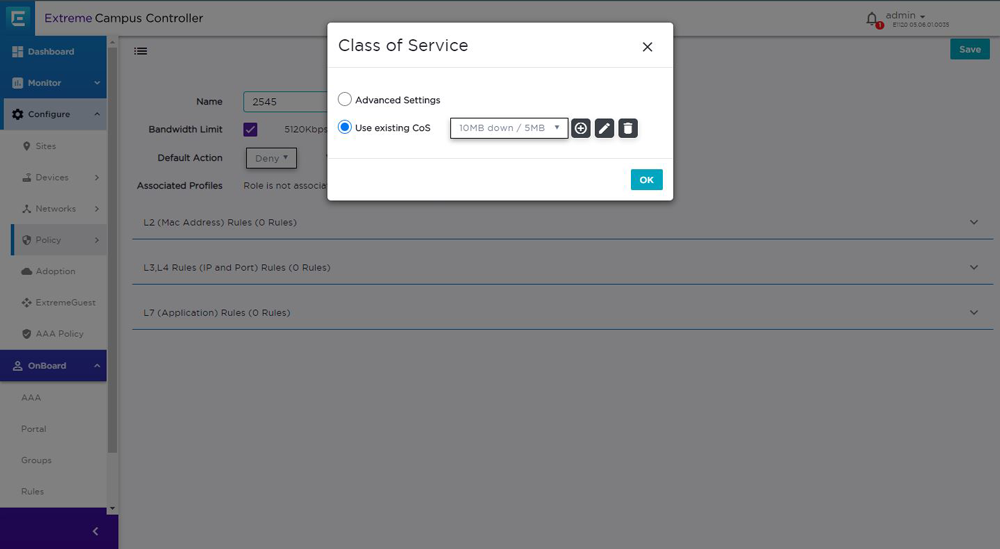
From the Class of Service pop up window select Use existing CoS and click + icon
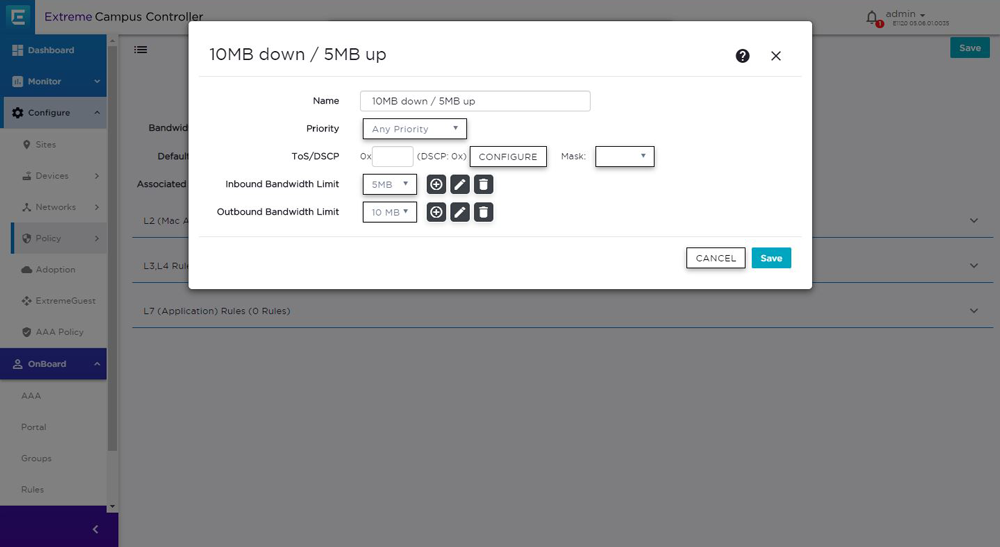
From the next window set CoS name ( in our case 10MB down / 5 MB up), select Any Priority, then configure Inbound Bandwidth and Outbound Bandwidth Limits.
When Inbound and Outbound Bandwidth Limits are set, click Save.
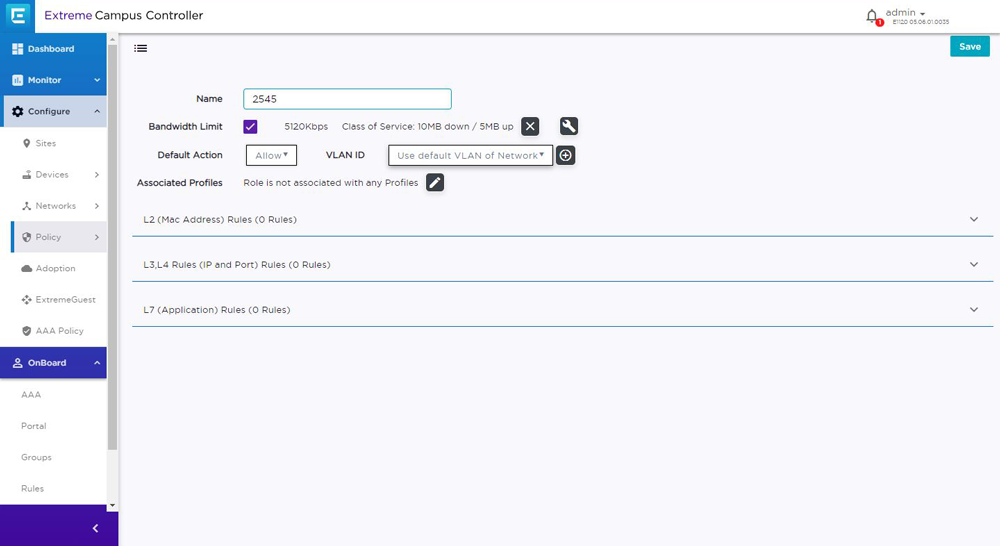
Click on the Settings icon again and select previously configured Class of Service ( 10MB down / 5 MB up)
In Default Action dropdown menu select Allow and save changes.


Server Information
Related Articles
Ubiquiti UniFi Cloud Controller
Ubiquiti UniFi Cloud Controller This article describes the installation and configuration steps for Ubiquiti UniFi Cloud Controller in Legacy mode. Instructions in this guide are only for older UniFi controllers with Legacy mode and shouldn’t be used ...TP Link Omada Controller
This article describes the installation and configuration steps for TP-Link Omada Cloud-Based Controller. You will need Omada Controller v5.3.1 or above in order to proceed. Our test was performed with Omada Cloud controller v5.9.41. CONNECTING Login ...Juniper Mist Cloud Controller
Setting up a custom guest portal page with Juniper Mist involves creating a captive portal and configuring parameters for authentication on the RADIUS server. Here are the steps you can follow: Access your Juniper Mist account through the Mist Cloud ...Aruba Central
This article describes the installation and configuration steps for Aruba Central. Our test was performed with Aruba AP-303-RW. Aruba Central Log in to your account using the Aruba Central portal. From the menu on the left, under Wireless ...Ruckus Virtual SmartZone
Ruckus Virtual SmartZone This article describes the installation and configuration steps for Ruckus Virtual SmartZone controller. Our test was performed with controller version 3.6.2.0.222, Control Plane Software version 3.6.2.0.63, and AP Firmware ...