Connecting your Access Point
Which AP can I connect?
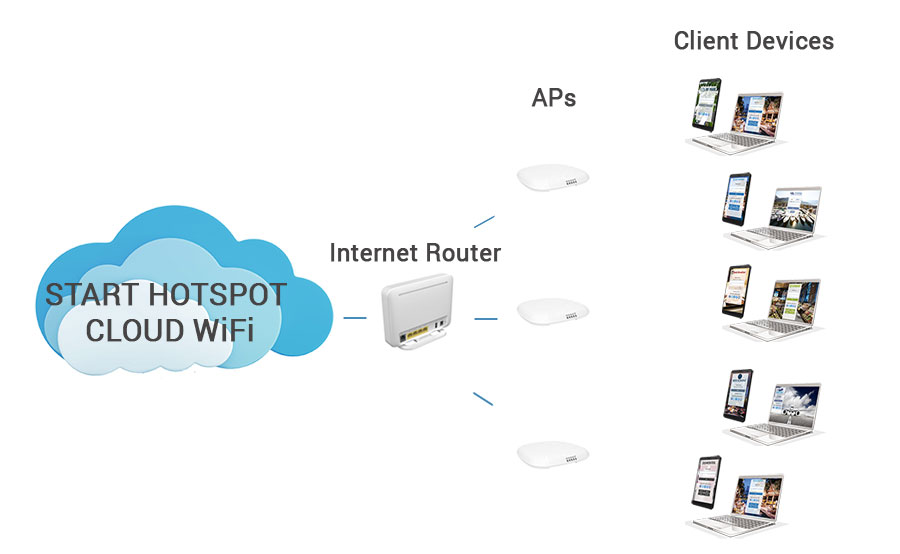
SocialWifiOnline cloud software works with a wide variety of APs (Access points) and WiFi routers. Different types of APs, WiFi routers, and other WiFi devices require a different setup.
For example, on devices based on OpenWRT, you will need to flash the firmware.
UAM based devices require configuration of SocialWiFionline parameters.
Need a professional low-cost APs?
Connecting
Connect your AP to the portal.
If you do not get the Splash page, ensure you’ve added the correct MAC address during the SignUp process to the SocialWiFionline portal. Some users type the wrong MAC address or forget to add the router's MAC address.
This is the most common mistake you can quickly correct.
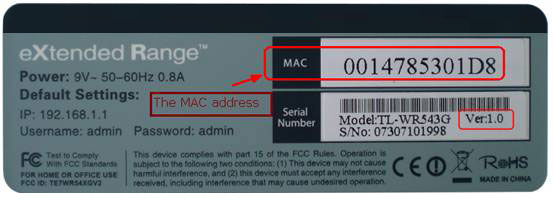
Find the MAC Address on the sticker at the bottom part of your router. On the same sticker, you can find other information, such as the Serial Number, router Model number, and Version.
To add MAC address and connect the router, log in to your SocialWiFionline account and go to the WiFi Locations / Hotspots page.
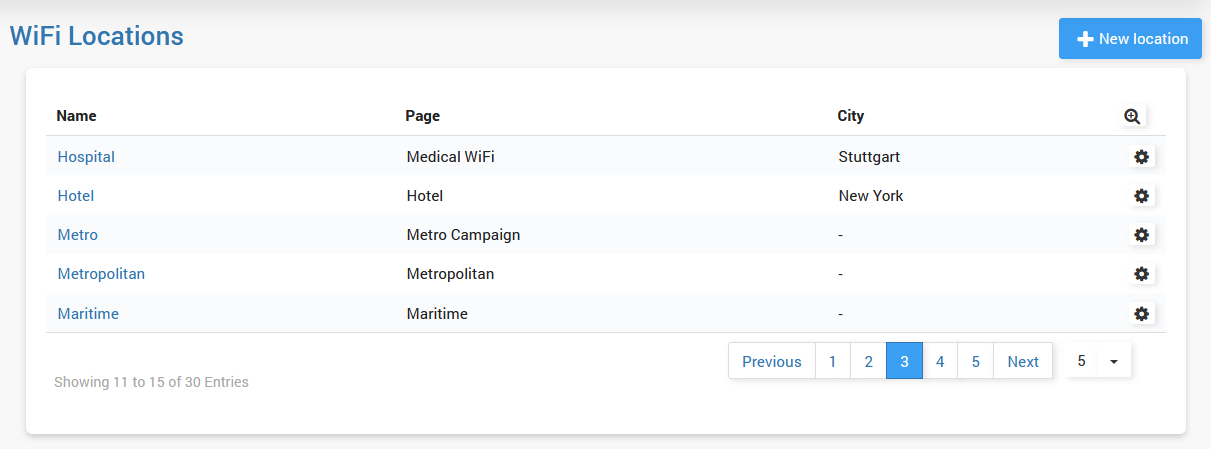
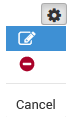
Select the location, click Edit from the Configuration button, or click on the Hotspot Name.
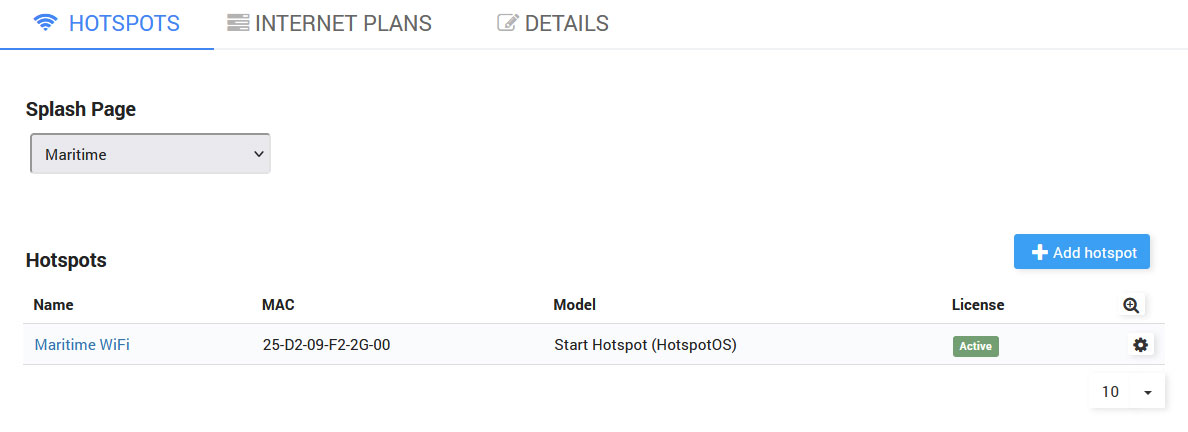
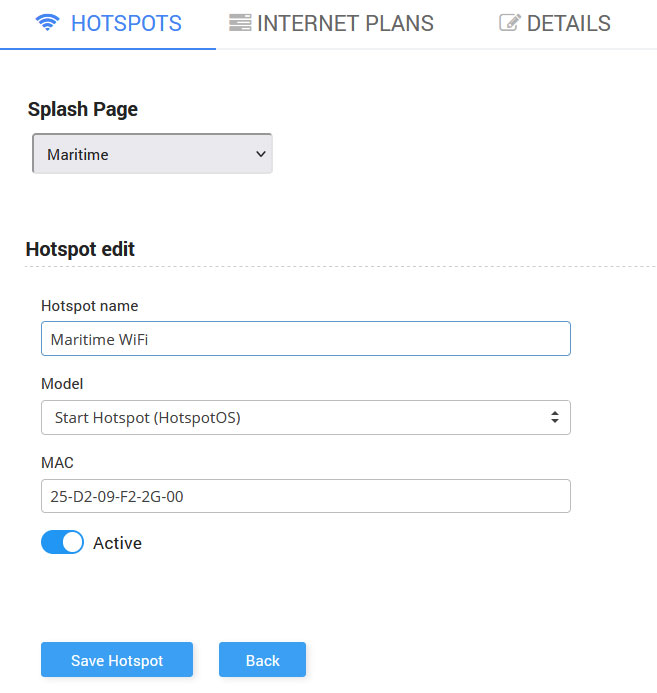
Select the router model and enter the MAC address in the MAC field.
When guests connect to your WiFi Hotspot, the Splash page will appear on their device.
Connecting AP with one ethernet port
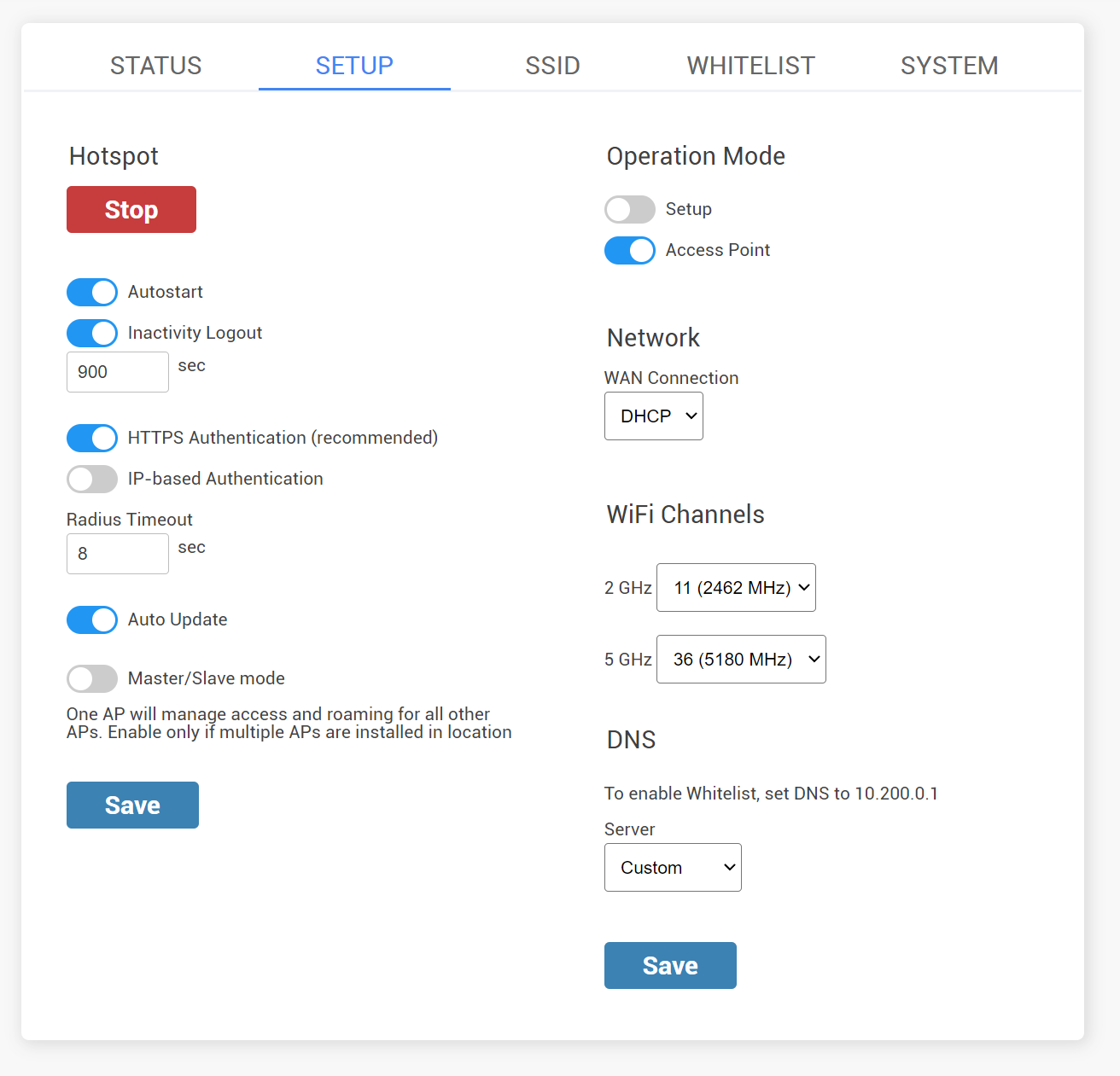
Reboot your AP, disconnect ethernet cable from your PC, connect it to your Internet source (modem, switch etc) and it will be ready for WiFi service.
Connecting AP with SIM card slot
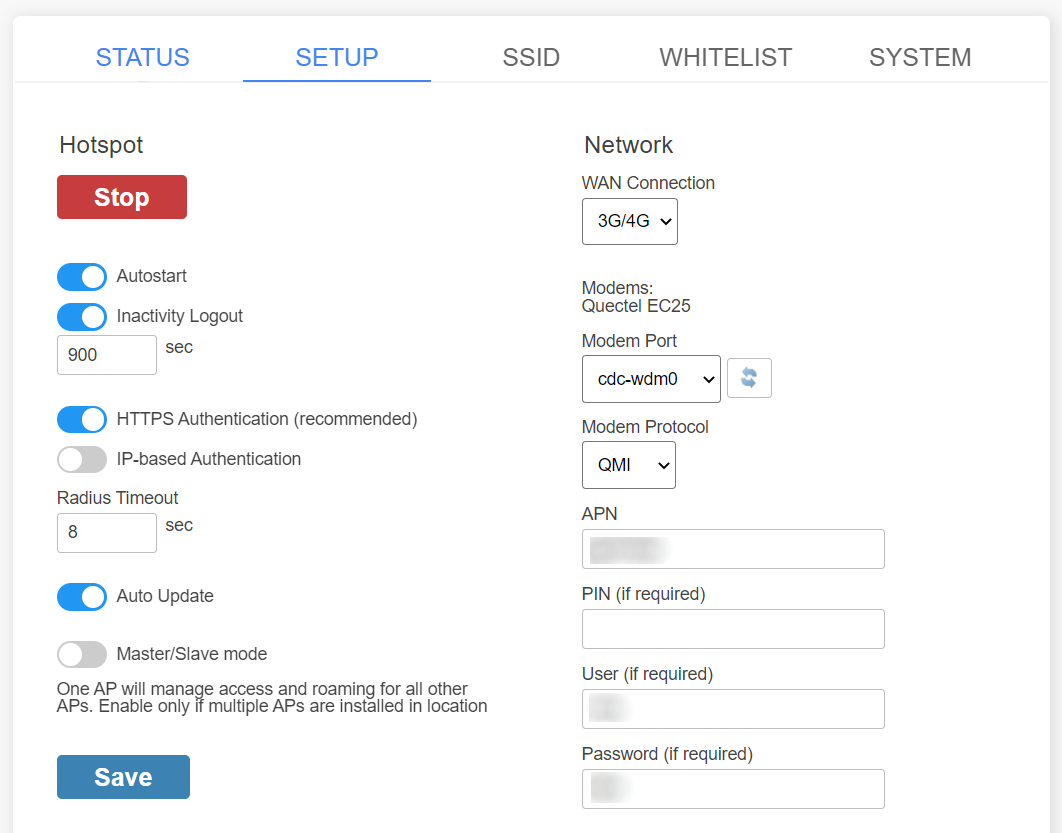
Please obtain the APN, User, and Password from your SIM Telecom provider.
Related Articles
SocialWifiOnline: Connecting Users, Simplifying Payments
The SocialWifiOnline Cloud WiFi system stands out due to its highly adaptable and flexible architecture. This inherent design enables effortless deployment and seamless operation across a remarkably diverse range of locations. Imagine the bustling ...Sign up for SocialWiFiOnline service
Signup process Sign-up and basic account configuration on SocialWiFiOnline is done in a couple of easy steps. Visit socialwifionline.com and Sign up for Cloud WiFi Hotspot. Users can Sign up for a new account using Email. Email verification is ...Become an ISP
SocialWiFiOnline Cloud WiFi has an advanced architecture which allows both simple and very large networks. You can start offering WiFi services and grow slowly by adding new access points, connect different city areas, one step at a time. However, ...Creating free or Paid wifi on SocialWiFionline
Creating free or Paid wifi on SocialWiFiOnline SocialWiFionline Cloud WiFi solution helps you to create free or paid WiFi HotSpot. The advantage of our solution is the very high customization of user accounts which allows creating limited or ...